
المنتجات
التكاملات


تكامل مع نظام Canvas
كشف الذكاء الاصطناعي مدمج في Canvas
يفحص It's AI كل إجابة طالب بحثًا عن محتوى مُولّد بالذكاء الاصطناعي ويعرض النتيجة مباشرة داخل SpeedGrader — دون نسخ ولصق، ودون تبويبات إضافية، ودون تغيير طريقة تقييمك.
كيف يعمل It's AI داخل Canvas
اربطه بأي واجب، يرسل الطلاب أعمالهم، ويرى الجميع ما تسمح به أنت بالضبط.
1
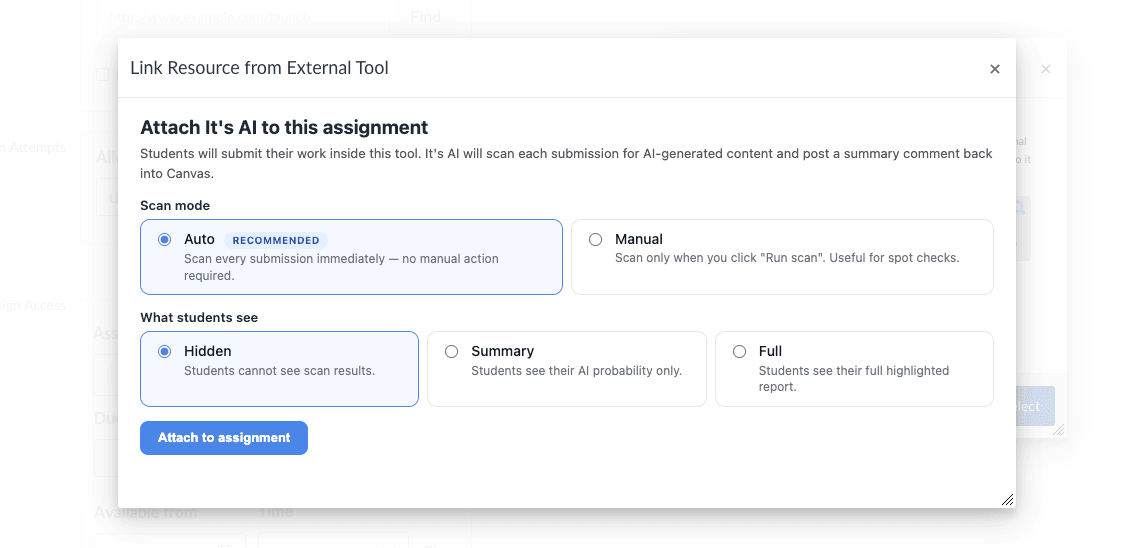
اربط It's AI بأي واجب
اختر It's AI كأداة خارجية (External Tool) في أي واجب وحدّد طريقة عمله: فحص كل إجابة تلقائيًا أو عند الطلب فقط، وقرّر ما يراه الطلاب — لا شيء، أو نسبتهم، أو التقرير الكامل.
2
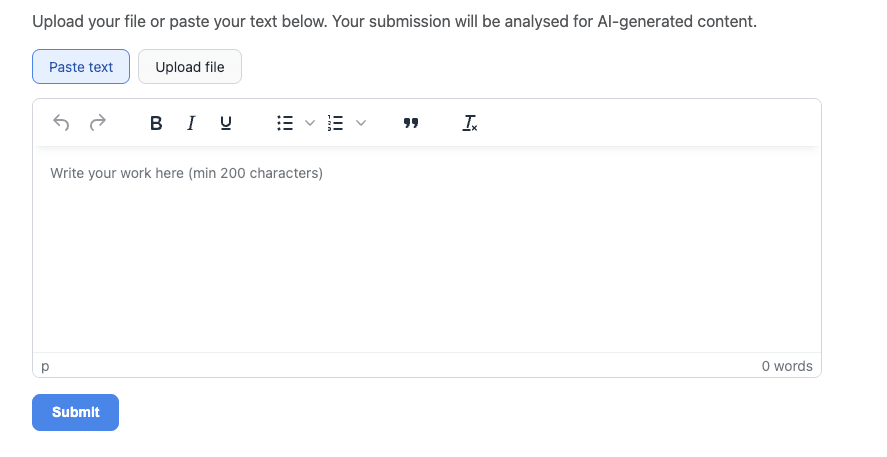
يرسل الطلاب أعمالهم داخل Canvas مباشرة
بلا حسابات وبلا تبويبات إضافية. يكتب الطلاب أعمالهم في محرّر نصوص منسّق — خط غامق وقوائم واقتباسات — أو يرفعون ملفًا (PDF وDOCX وTXT وغيرها)، ويستخرجها It's AI ويفحصها تلقائيًا.
3
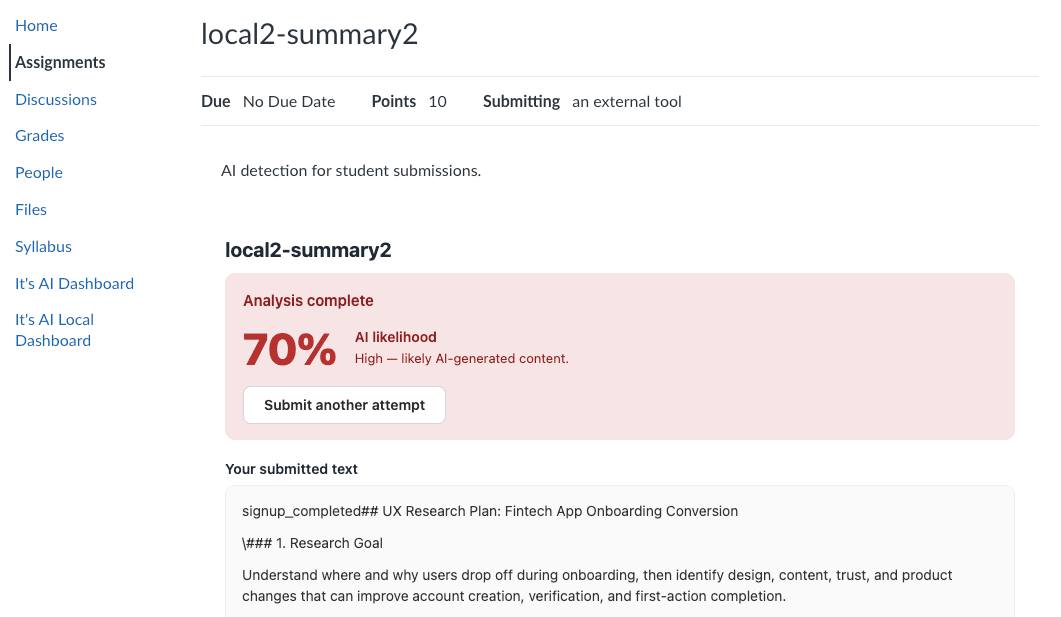
لا يرى الطلاب إلا ما تسمح به
حسب إعداد الواجب، قد لا يرى الطلاب شيئًا، أو يرون نسبة الذكاء الاصطناعي فقط، أو التقرير الكامل المميَّز — ويمكنهم إعادة الإرسال إذا سمحت بمحاولات إضافية. أمّا أنت فتحصل دائمًا على النتيجة الكاملة.
لوحة واحدة لكل الإجابات
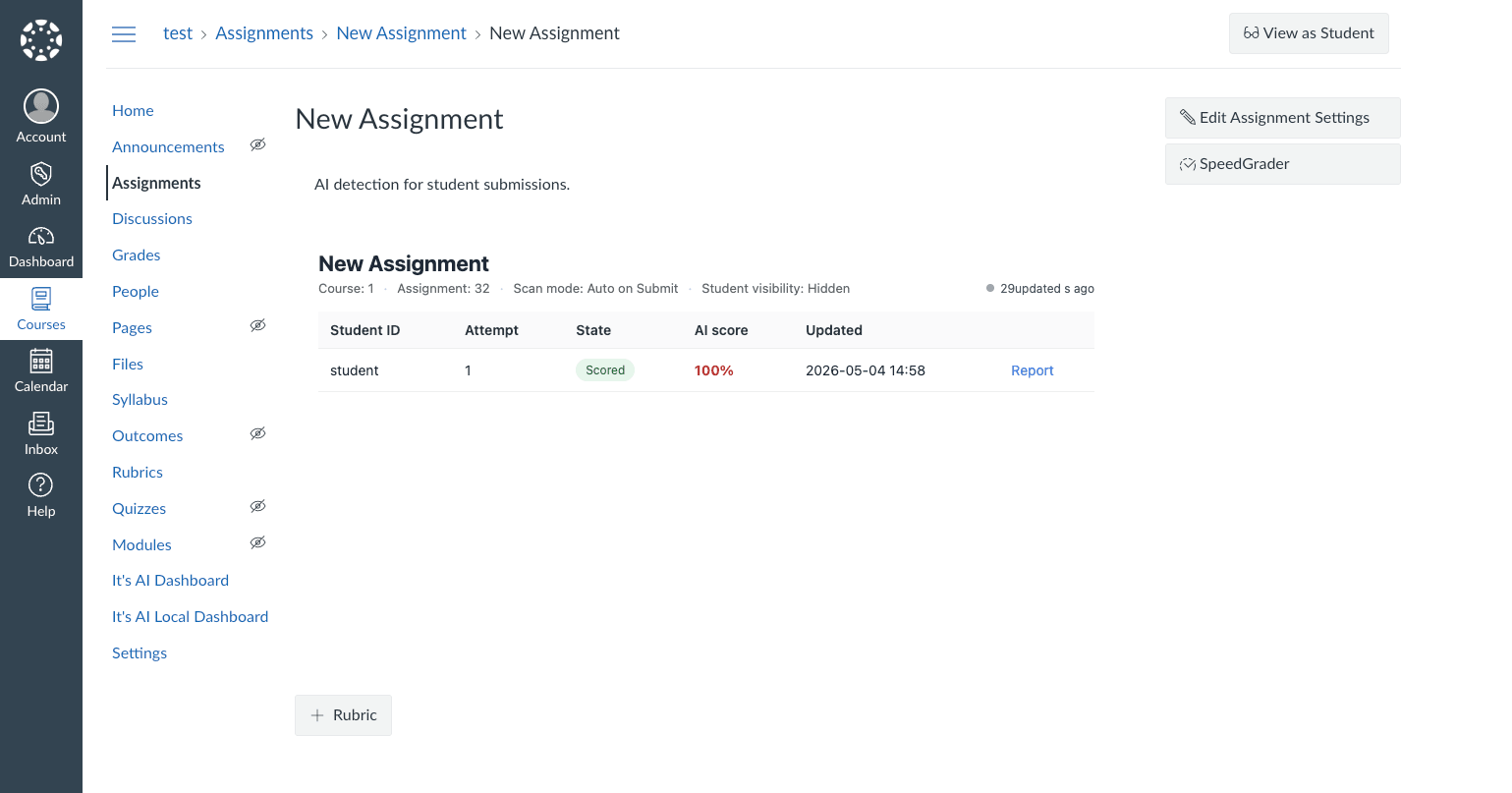
افتح الواجب ليعرض It's AI جدولًا بكل طالب ومحاولة وحالة الفحص ونسبة الذكاء الاصطناعي — بألوان من الأخضر إلى الأحمر — وكل صف يفتح التقرير الكامل. أعد فحص أي إجابة بنقرة واحدة.
مصمّم لطريقة عمل المعلّمين في التقييم
النتائج حيث تُقيّم
تظهر نسبة الذكاء الاصطناعي كتعليق داخل SpeedGrader، بجوار الإجابة مباشرة — دون فتح أداة منفصلة.
لا يغيّر الدرجة أبدًا
يضيف It's AI تعليقًا فقط. أمّا الدرجة الرقمية فتبقى بين يديك بالكامل.
فحص تلقائي أو يدوي
افحص كل إجابة لحظة وصولها، أو شغّل الفحص يدويًا لعمليات تحقّق انتقائية — الخيار لك في كل واجب.
تحكّم بما يراه الطلاب
اعرض للطلاب لا شيء، أو نسبتهم فقط، أو التقرير الكامل المميَّز — يُضبط لكل واجب على حدة.
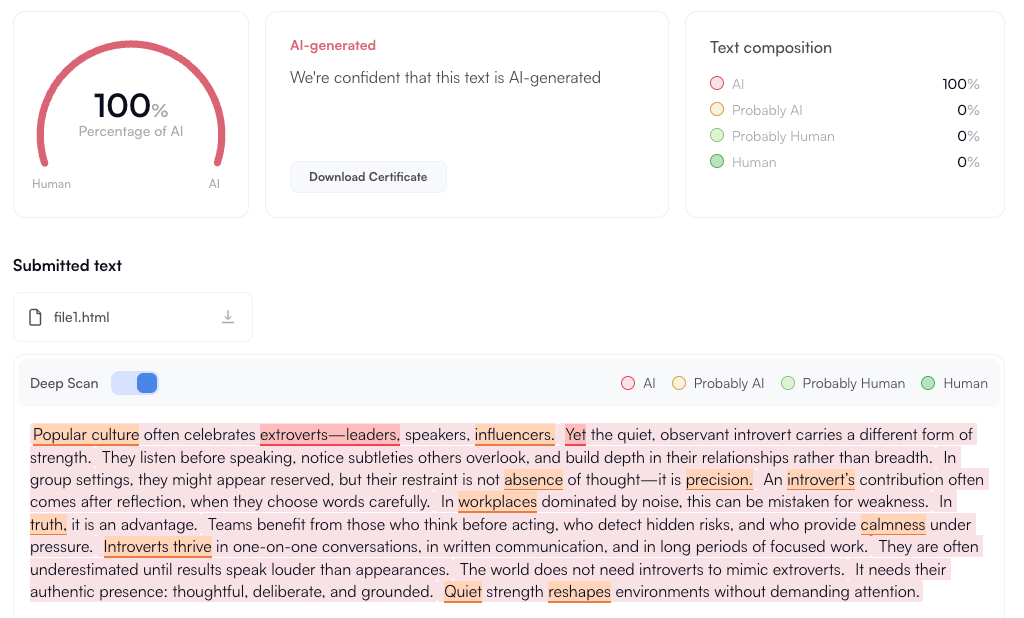
فحص عميق على مستوى الجملة
يبرز التقرير الكامل الجُمل التي تبدو مُولّدة بالذكاء الاصطناعي بالتحديد، لا مجرد رقم إجمالي.
إرسال نص أو ملفات
يكتب الطلاب نصًا أو يرفعون ملفات — PDF وDOCX وTXT وغيرها — ويستخرجها It's AI ويفحصها.
خصوصية وعزل تام
كل إجابة محصورة داخل مستأجر Canvas الخاص بمؤسستك. ولا يُشارَك أي شيء بين المؤسسات.
قائم على معيار LTI 1.3
يُثبَّت عبر التسجيل الديناميكي في Canvas ويعمل على Canvas المُستضاف والمُستضاف ذاتيًا على حدّ سواء.
اجعل الشفافية تجاه الذكاء الاصطناعي جزءًا من مقرّراتك على Canvas
احجز جولة توضيحية وسنساعدك على تشغيل It's AI داخل مقرّراتك على Canvas.
الأسئلة الشائعة
بعض الأسئلة الإضافية؟
ما إصدارات Canvas المدعومة؟
كاشف الذكاء الاصطناعي أو فاحص الذكاء الاصطناعي هو أداة تقدر ما إذا كان النص مكتوبًا بواسطة نموذج لغوي بدلاً من الإنسان. تحلل كواشف الذكاء الاصطناعي وفواحص الذكاء الاصطناعي الحديثة مثل It's AI أنماط الصياغة والبنية والاحتمالية النموذجية للمخرجات المولدة آليًا.
تحت الغطاء، النظام عبارة عن مجموعة من نماذج التعلم الآلي المدربة على مجموعات بيانات كبيرة من النصوص البشرية والمولدة بالذكاء الاصطناعي. عند لصق المحتوى في فاحص الذكاء الاصطناعي، يقوم الكاشف بتقييم كل جزء ثم ينتج نتيجة إجمالية. تم تقييم It's AI على مجموعات بيانات مثل MGTD وGRiD وHC3، مما يساعد في الحفاظ على دقة وموثوقية اكتشاف الذكاء الاصطناعي في الاستخدام الفعلي.
هل يحتاج الطلاب أو المعلّمون إلى حساب It's AI؟
لمعرفة نسبة الذكاء الاصطناعي في النص، الصق المحتوى أو ارفع ملفك ثم ابدأ الفحص. راجع النتيجة الإجمالية، واستخدم الفحص المتعمّق لمراجعة الجمل التي قد تكون مولّدة بالذكاء الاصطناعي. النتيجة تقديرية وتحتاج إلى تفسير في سياق النص.
هل يغيّر It's AI درجة الطالب؟
يمكنك تجربة كشف الذكاء الاصطناعي مجانًا مباشرة عبر كاشف الذكاء الاصطناعي المدمج في هذا الموقع. تكفي النصوص القصيرة لبدء فحص AI دون تكلفة، وتمنحك نظرة أولى على المحتوى الذي قد يكون مولَّدًا بالذكاء الاصطناعي.
للمشاريع الأكبر والعمل المنتظم، تفتح الترقية تقارير أعمق في محرك الفحص لدينا، مع السجل وشهادات PDF — مفيدة عندما تحتاج دليلًا موثَّقًا على الأصالة.
هل يمكن للطلاب رؤية نسبتهم؟
اكتشاف الذكاء الاصطناعي مهمة صعبة تكافح معها العديد من الحلول. ومع ذلك، فإن كواشف وفواحص الذكاء الاصطناعي الحديثة مثل It's AI تركز بشدة على هذه المشكلة ويمكنها اكتشاف المحتوى المولد بالذكاء الاصطناعي بأفضل دقة بين جميع الحلول. تم تقييم It's AI على عدة معايير عامة ويظهر دقة عالية مع معدلات إيجابية خاطئة منخفضة، كما يمكنك رؤيته في جداول المقارنة على هذه الصفحة.
لا توجد أداة مثالية، لكن الكاشف أو فاحص الذكاء الاصطناعي المدرب جيدًا والمستخدم بشكل صحيح يجيب على سؤال "هل تعمل كواشف الذكاء الاصطناعي؟" بنعم عملية. المفتاح هو التعامل مع نتائج اكتشاف الذكاء الاصطناعي كدليل للنظر فيه جنبًا إلى جنب مع السياق، وليس كدليل وحيد.
كيف يرسل الطلاب أعمالهم؟
عادةً ما يستخدم المعلمون والمدارس والكليات كاشف أو فاحص الذكاء الاصطناعي لدعم — وليس استبدال — حكمهم. تشمل سير العمل الشائعة:
• فحص المقالات قبل التقييم باستخدام فاحص محتوى الذكاء الاصطناعي؛
• التقييم بناءً على وجود الذكاء الاصطناعي وجودة العمل الإجمالية
• إذا كان الواجب يحتوي على نسبة كبيرة جدًا من الذكاء الاصطناعي، فقم بإجراء محادثة مع الطالب حول الاستخدام الأخلاقي للذكاء الاصطناعي وحظر/طلب إعادة كتابة العمل
تختار المؤسسات أدوات مختلفة؛ يستخدم البعض فاحص It's AI، بينما يعتمد آخرون على خدمات بديلة. الجزء المهم هو الجمع بين اكتشاف الذكاء الاصطناعي والسياسات الواضحة حتى يعرف الطلاب ما هو مسموح به وكيف سيتم تفسير النتائج.
كيف نثبّته؟
السلامة تعتمد على المزود. قبل الوثوق بأي كاشف أو فاحص ذكاء اصطناعي، تحقق من كيفية تخزينه ومعالجة بياناتك:
• هل النصوص مشفرة أثناء النقل وفي حالة الراحة؛
• هل يتم إعادة استخدامها للتدريب؛
• من يمكنه رؤية سجل الفحص.
تم تصميم فاحص It's AI بحيث يتم تحليل المحتوى بأمان ولا يتم مشاركته مع أطراف ثالثة بعد اكتمال الفحوصات. يتيح لك ذلك استخدام كاشف الذكاء الاصطناعي للمستندات الحساسة مع الحفاظ على تحليل الذكاء الاصطناعي تحت سيطرتك.