Single and batch checks with the It's AI API
It's AI API v2 has two methods. The choice depends on how you receive the content. You can check each text separately or send a group in one request.
When texts arrive one at a time
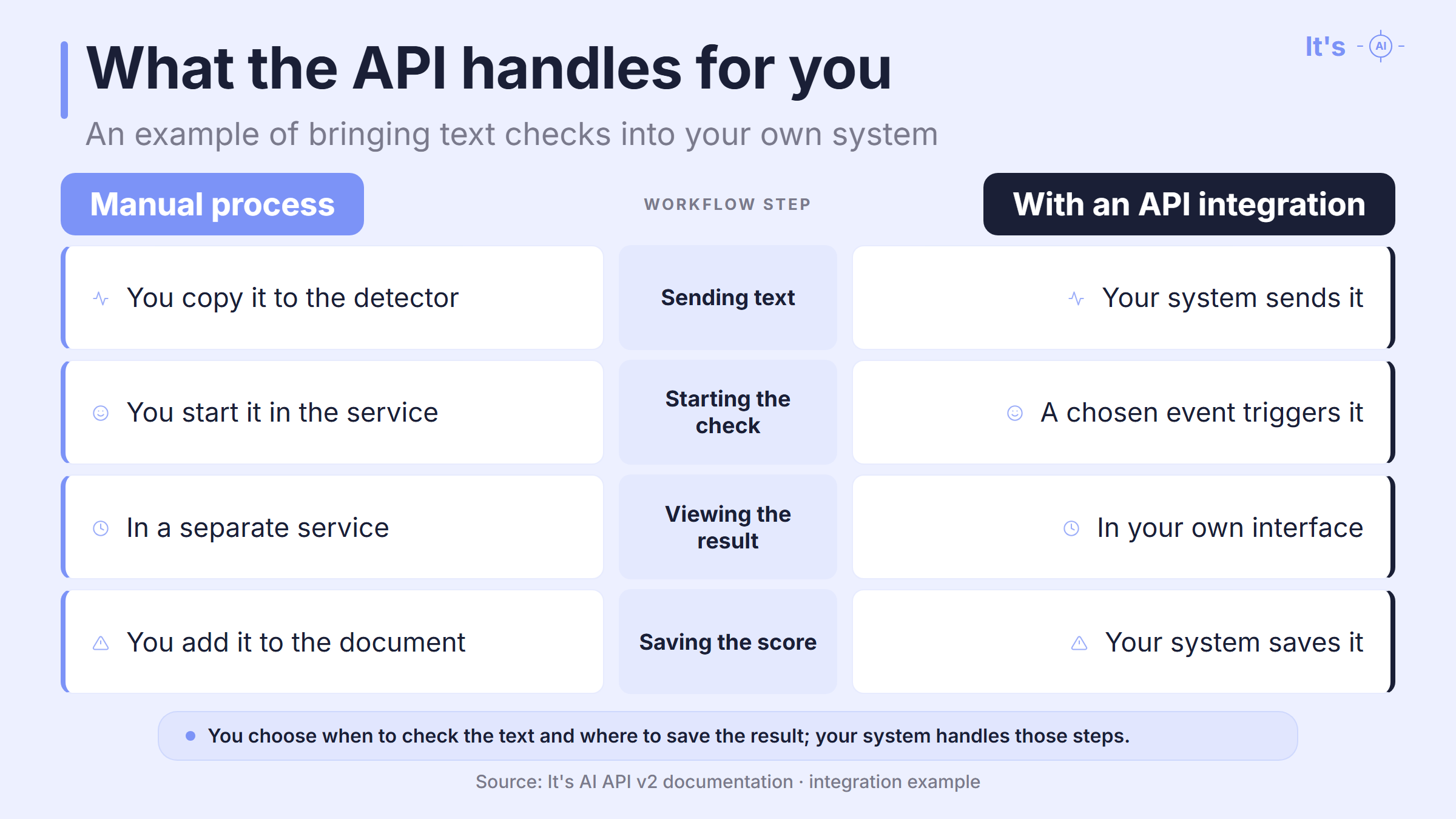
A single-text check is suitable if you want a result as each document arrives. For example, someone submits text through a form, and your application sends it to It's AI. A developer can also add a “Check” button directly to the document page.
This uses the POST /api/v2/text method. After analysis, the result returns to your application, where you can display it or save it with the document.
Each request is processed separately. You can use a score as soon as you receive it, without waiting for results on other texts.
When it is easier to check a group of texts
If the texts are already collected, you can send them through POST /api/v2/batch. This is suitable, for example, for documents uploaded in one batch or for checking accumulated content on a schedule.
On Enterprise, one request can contain up to 250 texts. You can send a whole collection this way, without making a separate request for each text.
Each text will have its own result. The results come back in the same order as the submitted texts, so the application can save each score with the corresponding document.
Send the texts as separate items in the batch. You will then get a result for each one, rather than a single score for the combined text.
Both methods are described in the It's AI API v2 documentation. You can also check several documents through separate requests: choose the approach that suits your process.
What you can show next to a document
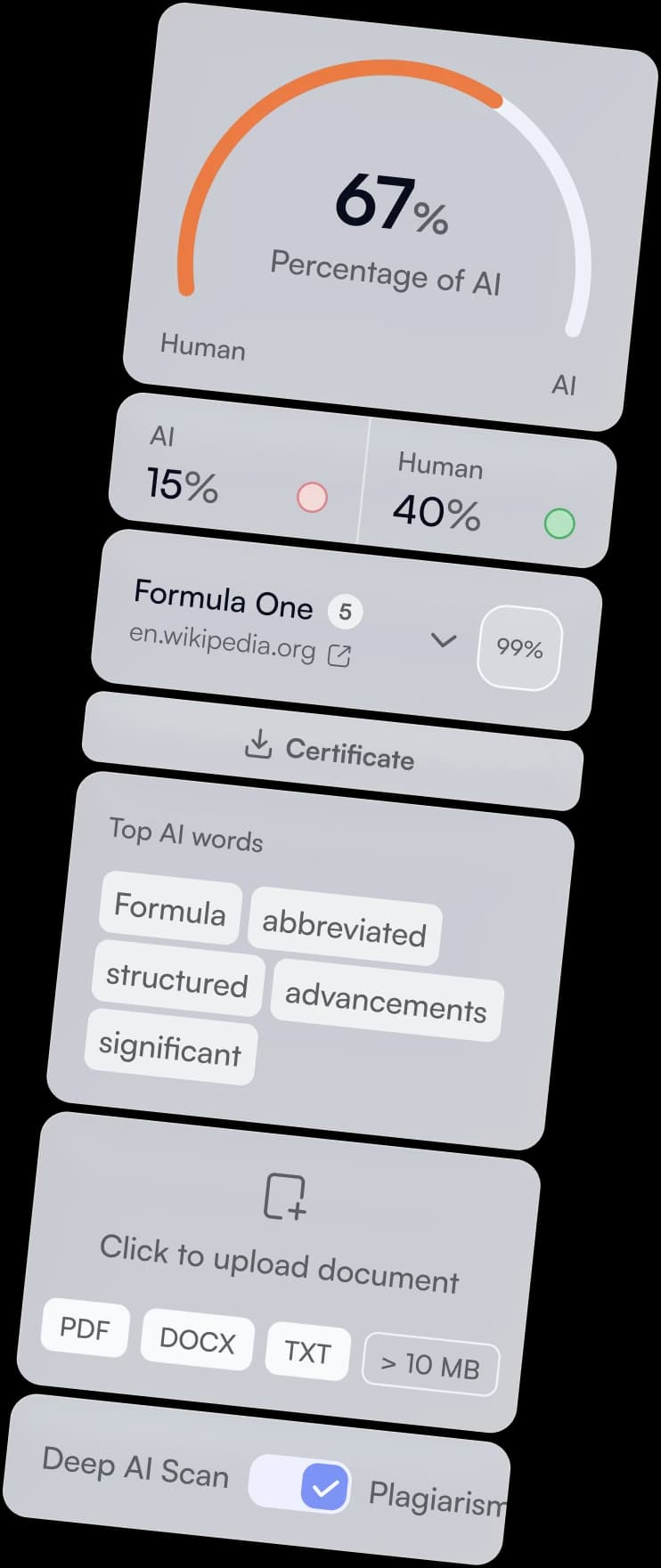
The API returns data that a developer can use to display the result the way you need it. You can keep the overall score on the document page and show the details when someone opens the report.
| What you need to see | Data available through the API | How you can use it |
|---|
| The detector's overall score | score | Display it next to the document |
| The share of text classified as AI | ai_percentage | Show a percentage in the document record |
| Results for individual sentences | segments | Set up a detailed view and highlight passages |
| A report of the check | report_id | Retrieve a PDF certificate and save it with the content |
Source: API response documentation.
For example, a list of documents can show the AI percentage, while the page for a selected text shows sentence scores. A person can look at the score for each sentence and find passages with high AI scores. They do not need to move the text to another service to do this: a developer can build the detailed view directly in your application.
When setting this up, keep the meaning of the measures clear. Use ai_percentage for the percentage, while score gives the detector's overall assessment. The developer sets up highlighting in your interface using the segments data.
How to share the result with someone else
The result may be needed by someone other than the person who ran the analysis. For example, a client may ask for a report along with the finished work. Through the API, you can get a PDF certificate of the check and attach it to the document.
This uses the report_id returned with the result. The certificate has a QR code linking to the report page. According to the official SDK description, the recipient can open that page through the link. You can share the report itself instead of copying the score into a message.
You decide when to run the check
The API lets you connect analysis to an action in your application. This could be a button click or the arrival of a new text. If you prefer to collect the texts first, a developer can set up scheduled requests.
For example, an employee adds a document to the system. It sends the text to It's AI, receives the response, and writes the score to the document record. When the employee opens the completed result, they no longer need to find a separate report and move the data by hand.
The request can run in a background job. While the analysis is running, the user continues working in the application; after receiving the response, the system updates the status and shows the result.
It is worth saving the score with the version you sent for analysis. As work on the document continues, you will be able to see which text the check refers to.
What other checks you can add
It's AI also offers plagiarism and grammar checks through the API. The official SDK has separate methods for them. The plagiarism check returns sources and matching passages, while the grammar check returns comments and suggested corrections. If your team needs these results too, a developer can add them to the same system by setting up separate requests.
How to start using It's AI API
You will need a developer and an API key to set up the integration. According to the documentation, API access is included in the Enterprise plan. The minimum length of one text is 200 characters; the maximum depends on the plan's terms.
Before connecting, you just need to decide:
- Where the application will get the texts.
- When they should be sent for checking.
- Where the employee or user should see the result.
These decisions will help the developer choose the method and set up the data transfer. For Python applications, there is an official It's AI SDK with synchronous and asynchronous clients.
Start with a few of your own documents and look at the whole process in your usual interface: sending the text for analysis, receiving the score, and saving it. This will help you decide which actions your team can hand over to the system in its regular work.
To prepare the integration, give your developer the It's AI API documentation, an example document, and an indication of where you want to see the result of the check.
FAQ
Can I connect an AI detector to my CMS?
Yes, if your CMS lets a developer send requests to external services and save the responses. For example, you can add a check while working on a draft and show the score in the article editor. A developer can check what your CMS supports and set up the connection through the It's AI API.
Can I check Word and PDF documents through the API?
For the methods described in this article, the application first extracts the text from the document. The request contains the text itself, rather than a Word or PDF file. A developer can add this step to the document upload process. A scanned PDF will also need text recognition. The employee uploads the file to their usual system, which prepares it for the check. See the API request format.
Do I have to use Python to connect to the API?
No. An application written in another language can connect to It's AI if it can send HTTP requests and read JSON responses. The official Python SDK is one way to connect. If your service is written in JavaScript or PHP, for example, a developer can work with the API directly. You do not need to rewrite the application in Python to check texts. See the API documentation and the official SDK.
Which scan mode does It's AI API v2 use?
API v2 uses Deep Scan. The official SDK description states this for the single-text method analyze_text_v2: you do not need to enable deep analysis separately. When setting up the connection, the developer should use examples for v2. The SDK methods for API v1 set the scan mode differently. See the SDK method descriptions.