
Products


Canvas LMS integration
AI detection, built into Canvas
It's AI scans every student submission for AI-generated content and posts the result right inside SpeedGrader — no copy-paste, no extra tabs, no change to how you grade.
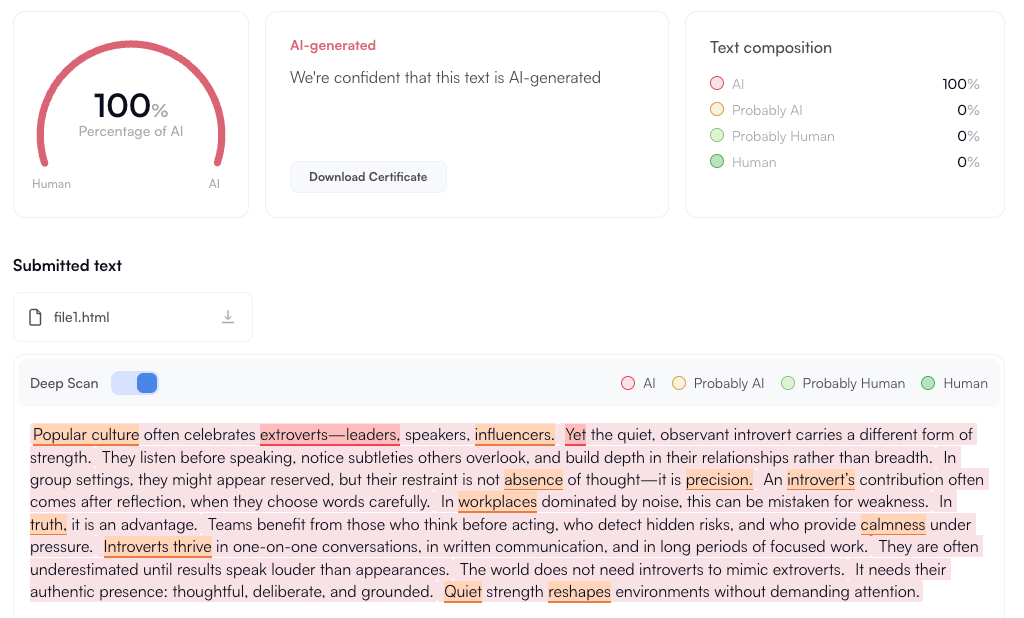
How It's AI works in Canvas
Attach it to an assignment, students submit their work, and everyone sees exactly what you allow.
1
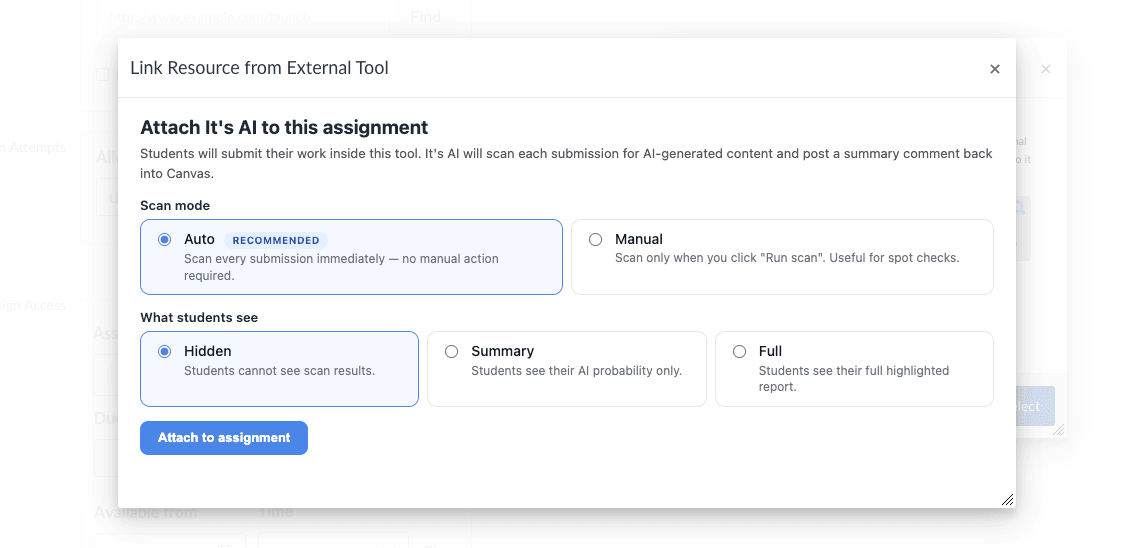
Attach It's AI to any assignment
Pick It's AI as an External Tool on any assignment and choose how it runs: scan every submission automatically or only on demand, and decide what students see — nothing, their score, or the full report.
2
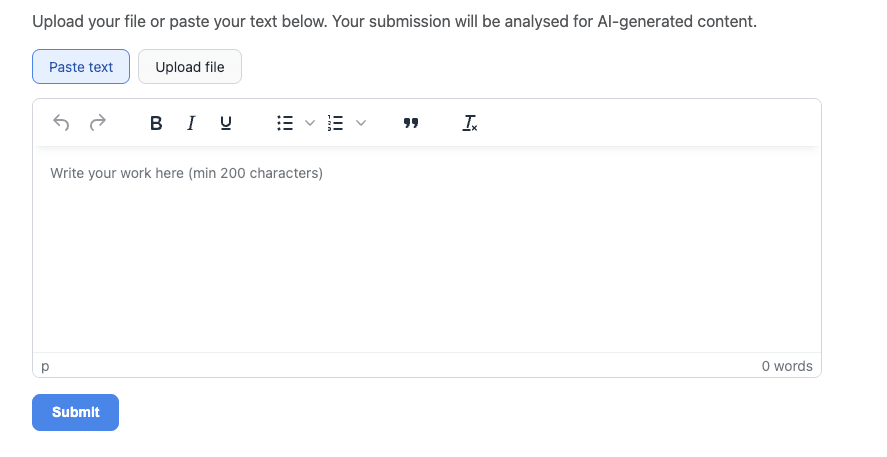
Students submit right inside Canvas
No accounts, no extra tabs. Students paste their work in a rich-text editor — bold, lists, quotes — or upload a file (PDF, DOCX, TXT and more). It's AI extracts and scans it automatically.
3
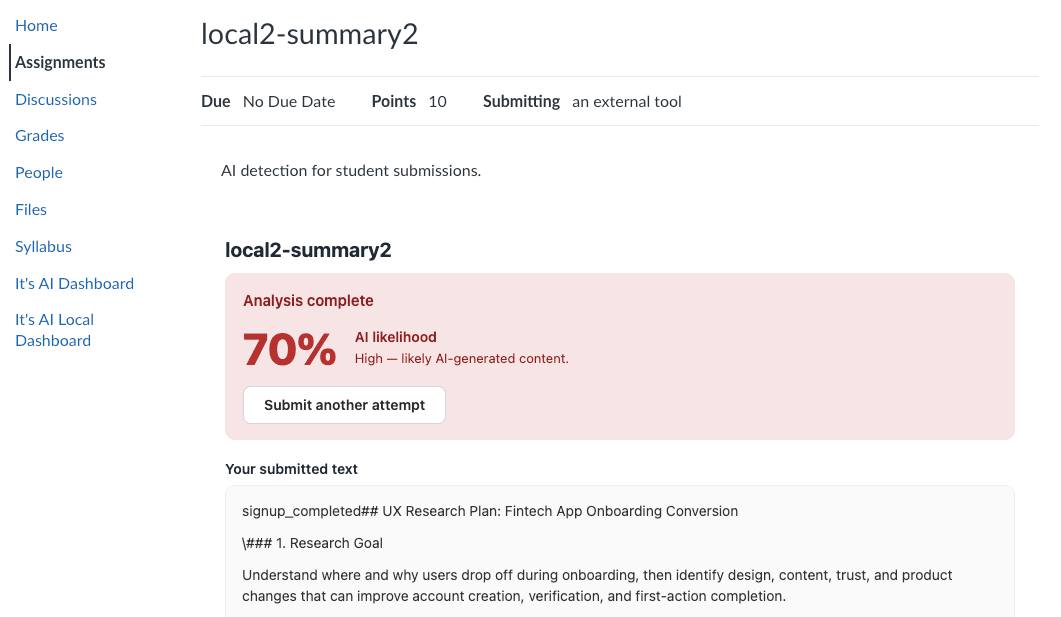
Students see only what you allow
Depending on your assignment setting, students see nothing, just their AI probability, or the full highlighted report — and can resubmit if you allow more attempts. You always get the complete result.
One dashboard for every submission
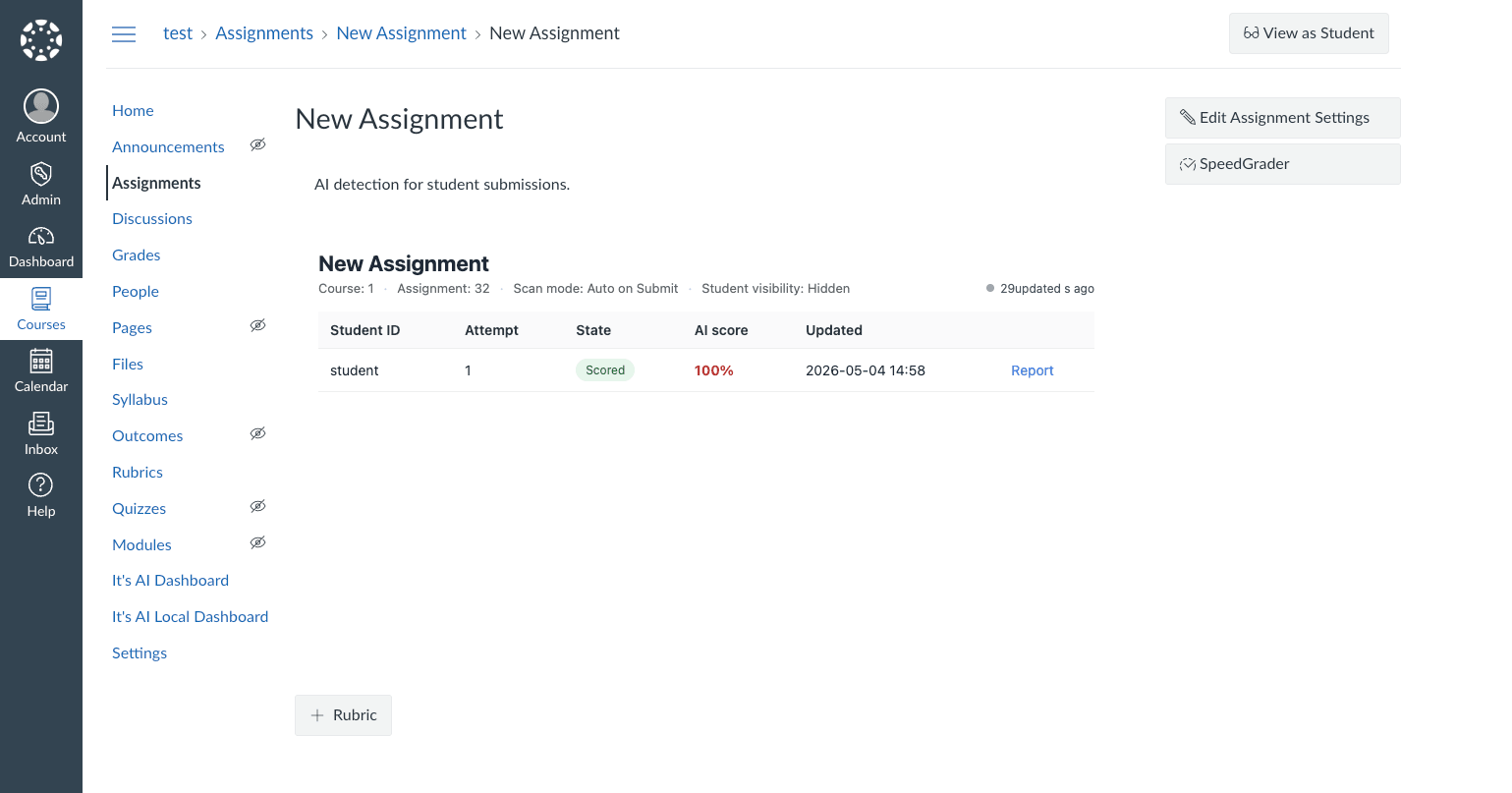
Open the assignment and It's AI shows a table of every student, attempt, scan state and AI score — colour-coded from green to red — each linking to the full report. Rescan any submission with one click.
Made for the way teachers grade
Scores where you grade
The AI likelihood appears as a SpeedGrader comment, right next to the submission — no separate tool to open.
Never changes the grade
It's AI only adds a comment. The numeric grade stays entirely in your hands.
Auto or manual scanning
Scan every submission the moment it arrives, or run scans manually for spot checks — your choice per assignment.
Control what students see
Show students nothing, just their probability, or the full highlighted report — configured per assignment.
Sentence-level deep scan
The full report highlights exactly which sentences read as AI-generated, not just an overall number.
Text and file submissions
Students paste text or upload files — PDF, DOCX, TXT and more — and It's AI extracts and scans them.
Private and isolated
Every submission is scoped to your institution's Canvas tenant. Nothing is shared across schools.
Standards-based LTI 1.3
Installs through Canvas Dynamic Registration and works on hosted and self-hosted Canvas alike.
Bring AI transparency to your Canvas courses
Book a walkthrough and we'll help you get It's AI live in your Canvas courses.
FAQ
A few more questions?
Which Canvas versions are supported?
Any Canvas that supports LTI 1.3 with Deep Linking — both Instructure-hosted and self-hosted (open-source) Canvas.
Do students or teachers need an It's AI account?
No. The integration uses Canvas's own login, so nobody creates or manages a separate It's AI account.
Does It's AI change the student's grade?
Never. It's AI only posts a comment with the AI likelihood and a link to the report. You grade exactly as you do today.
Can students see their AI score?
That's up to you, per assignment: hide results entirely, show only the probability, or show the full highlighted report.
How do students submit their work?
Inside the assignment: they paste text or upload a file (PDF, DOCX, TXT and more). It's AI extracts the text and scans it.
How do we install it?
A Canvas account admin installs it once via LTI Registration — about 10 minutes. Contact sales@its-ai.org and we'll send your personal install link.